The Complete Beginner's Guide to Docker: From "Too Scared to Try" to Building Systems Like a Pro
Docker had been on my "to-do" list for a long time. I knew I needed to learn it, but I always left it for tomorrow. Why? Because honestly, it felt terrifying. It felt like something meant exclusively for Senior Developers, not someone like me who is just midway through their transition into tech.
But then I realized something huge: In the age of AI, there is no more Junior or Senior.
AI can write the code and bridge the raw programming gap. The real hero today is the one who knows how to organize and architect a system. Once I realized that, I jumped into Docker without a second thought.
To be honest, it was hard to grasp at first. Everywhere I looked, tutorials jumped straight into massive YAML files without explaining the basics. Docker just wasn't clicking for me.
After deep research, I found out why: To start a journey in Cloud, Docker, or CI/CD, Linux is the prerequisite. Almost every server in the world runs on Linux. So, I put a hold on Docker and jumped into Linux.
Linux — The Mediator
I thought, "How hard can it be? Linux is just another OS like Windows." I had a little experience with Linux from high school, but only clicking around the GUI (Graphical User Interface).
When I went deep into Linux, I had to learn how to use the whole device from the CLI (Command Line Interface). It was boring and tough at first. But as I drilled everything into my muscle memory, I realized something: Using the CLI is much faster than a mouse.
Fortunately, I have a Mac, which is Unix-based (very similar to Linux), so it helped me practice daily. I learned:
- Basic shell commands: Navigating files and folders.
- Networking: How machines talk to each other over ports and IP addresses.
- Users and Groups: Who is allowed to do what.
- systemctl and services: How apps run quietly in the background.
I didn't know exactly when I'd use this in real life, but I knew cloud infrastructure was built on it. Once I felt I could fairly use Linux, I gave Docker another shot.
And trust me, it made it so easy. Even moving from Docker to Kubernetes (K8s) later felt logical. I finally saw how Linux, Docker, and K8s all connect.
Back to Docker: What Problem Does It Actually Solve?
After extensive learning, I realized Docker solves a problem developers have had for ages: "It works on my machine!"
The Problem: Every developer's laptop is configured differently (Windows, macOS, Ubuntu). If a developer tries to copy a whole project to a teammate's computer, the app breaks if the OS or underlying packages don't exactly match. You end up wasting days replacing incompatible packages.
The Solution:
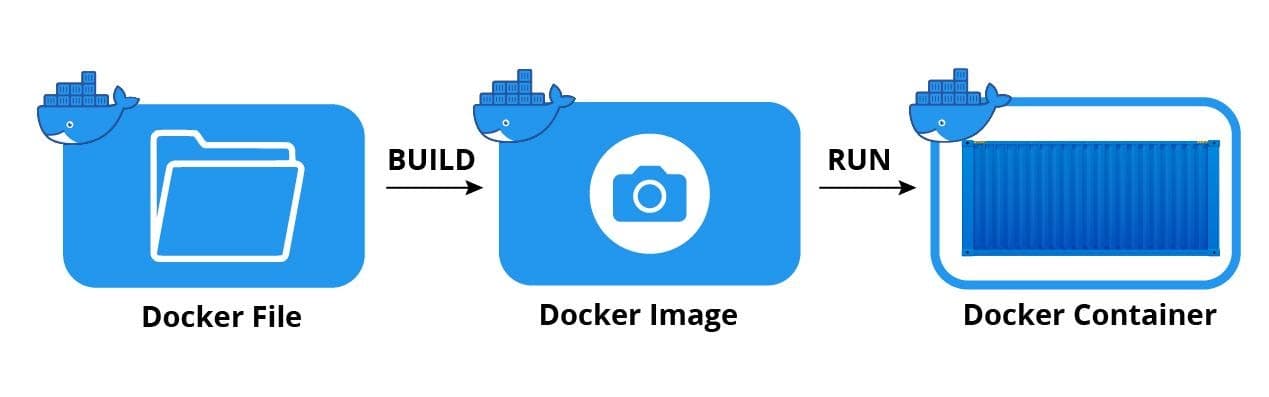
With Docker, you build a fully ready Dockerfile (your blueprint), which spits out a Docker Image. Because almost all servers run on Linux (or can be configured to), you can install Docker on any machine and run that exact image with one command: docker compose up.
You are ready to go without worrying about mismatching underlying dependencies or downloading tools. This is why Docker is the industry standard to ship software.
Note: Docker is essentially a feature of Linux. Every app runs inside an isolated container managed by the Docker system.
The Core Vocabulary: Things We Need
Here is the simplified, complete list of what makes Docker work:
- Docker Engine: The system that manages and fires up everything. It virtualizes the Linux kernel on Mac or Windows, or shares it if you're already on Linux.
- Dockerfile: The text file with instructions on what your app needs (like Node, Python, or specific libraries). It is the "blueprint" used to build an image.
- Docker Image: The packaged output of the Dockerfile. It contains your code, libraries, and settings in a single, unchangeable file. Think of it as a "frozen" version of your app.
- Docker Container: The running version of the image. When you "start" an image, it becomes a container. It is the actual, live application.
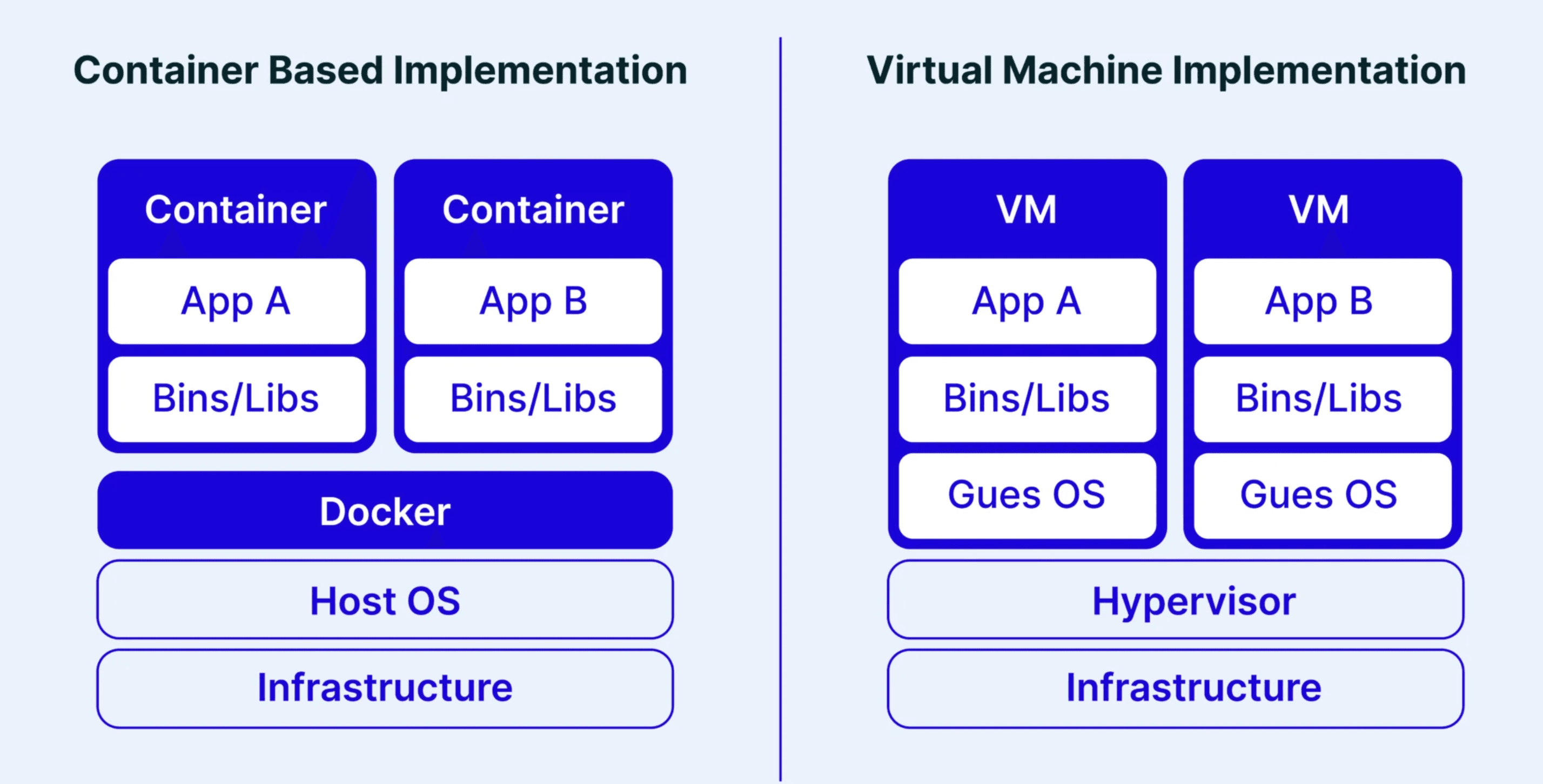
- Think of this as an independent Virtual Machine inside Docker.
- You can run anything from an OS to an App with a Docker Image.
Using Docker is way more lightweight than using a full Virtual Machine which needs its on resources.
Level 1: Docker Setup & My First Container
First, download and install Docker Desktop for learning. (Just remember, in a real production server, there is no Desktop GUI version—it's all terminal!).
My First Container
Once installed, open your terminal and run your first container:
# docker run tells docker to find an image and start it as a container
docker run hello-world
Docker will look for this image locally, fail to find it, and automatically pull it from Docker Hub (the GitHub of Docker images).
💡 Pro Tip: If you want to learn Linux without a VM: open docker desktop -> open terminal and run
docker run -it ubuntu:latest. Just like that, you have a real Ubuntu terminal. No heavy OS downloads required.
Creating My First Custom Container
Container Images work on layers, like a caching mechanism. If we run ubuntu:latest, it just gives linux, we have to update it manually every time and install tools to work in it so instead why not use our image with linux comes with everything.
Run this in your terminal:
# docker build creates the image
# --tag names our image
# - tells docker to read the recipe from the terminal
# <<EOF tells the terminal to record everything until it sees "EOF"
docker build --tag my-updated-ubuntu-image - <<EOF
FROM ubuntu:latest  # Use the official Ubuntu as a starting point
RUN apt-get update && apt-get install -y iputils-ping # Update and install ping tool
EOF
# You can install anything in this image that requires your need
Running and Interacting
To run Linux, you must use interactive mode, otherwise, it boots up and immediately shuts down. Because there is nothing to keep it running.
- Create/Run container:
# -i = interactive (keep keyboard input open)
# -t = tty (give me a terminal window)
# --name = give the container a human name instead of a random ID
docker run -it --name my-ubuntu-container my-updated-ubuntu-image
To exit the container, just type exit.
Using -it tells keep one terminal or process running in background which keeps linux alive.
- Attach container: If the container is already running in the background, jump back in:
# attach connects your current terminal to the container's terminal
docker attach my-ubuntu-container- Checking Status:
docker ps     # Show ONLY running containers
docker ps -a  # Show ALL containers (even stopped ones)
Data Persistence (The Marriage Analogy)
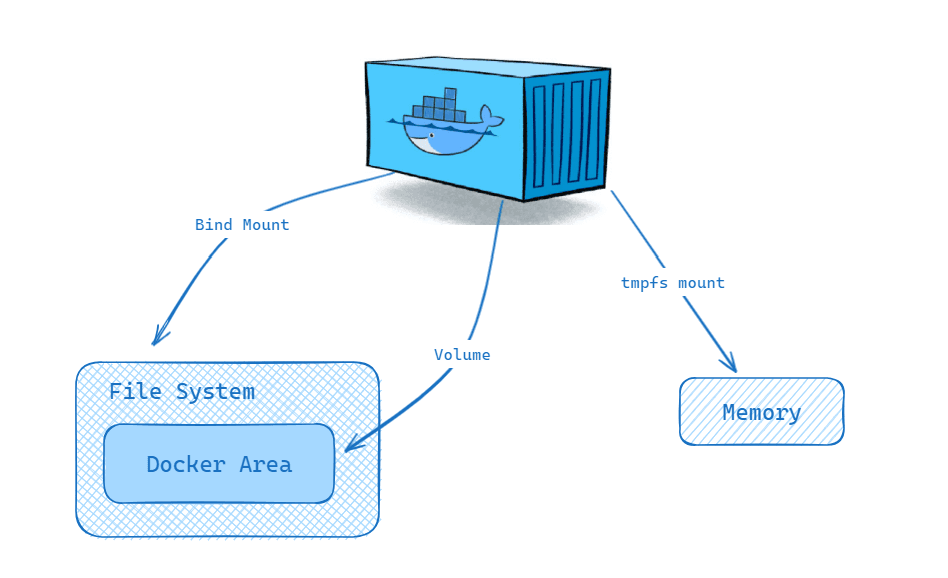
Here is a harsh truth: When a container is deleted, all its data dies with it. To prevent this, we use Volumes. This shares a folder on your Mac/PC with a folder inside Docker.
The 3 Types of Mounts
- Host Folder <-> Container Folder (Bind Mount - The USB Stick)
# Mapping a specific folder on your PC to a folder inside the container
# Changes are bi-directional and real-time.
docker run -it --mount type=bind,source=$(pwd)/shared-data,target=/my-data ubuntu:latest- Analogy: Like plugging in a USB drive. If you delete the folder on your host, the container breaks. It's a fixed gateway for your data.
- Named Volume (Docker Managed - The Marriage)
# Docker creates a hidden folder and manages the storage for you
docker run -it --mount type=volume,src=my-hidden-data,dst=/my-container-folder ubuntu:latest- Analogy: It’s like a Marriage. One cannot survive without others. And if the container dies, the data (the marriage) survives for next container to boot up, until you explicitly delete the volume.
- Anonymous Volume (Ghost Volume)
# Docker creates a volume with a random ID name. Hard to track.
docker run -it --mount type=volume,destination=/container-data-folder ubuntu:latest
💡 Pro Tip: Use
-v host:containerfor speed, but--mount type=...is clearer for beginners.
You can use either src, source or dst,target and destination. or just : with -v
Docker Binding are of three types:
- Bind you can see and change in your machine
- volume managed by docker
- tmpfs also manged by docker, but it stored in RAM, and volatile
Level 2: Running a Real App (The CLI Way)
Docker means you never have to install Postgres, Mongodb or Redis on your actual computer again. Let’s run my app, Flow which is simple todo app that needs Postgres as DB.
Shared Networks
Containers are isolated they are unknown to each other. To make them talk, we create a shared network (like a private chat room). If there is no shared network, docker default network is used where each container is assigned random IP and we need to bind container with their IP to make them talk to each other. And the problem is if container dies and we create one then new IP is assigned which is nightmare to keep track. So instead use the shared network.
Within the shared network they can communicate using their container name.
- Create Network:
docker network create todo-net # Create the room- Run Postgres Database:
docker run -d \                     # -d = detached (run in background)
  --name postgres-container \       # Name of the DB container
  -e POSTGRES_USER=postgres \       # Set the DB username
  -e POSTGRES_PASSWORD=example \    # Set the DB password
  -e POSTGRES_DB=tododb \           # Name the database
  -p 5432:5432 \                    # [Your PC Port] : [Container Port]
  --restart unless-stopped \        # Auto-start if it crashes
  --network todo-net \              # Join the chat room
  -v pg-todo-data:/var/lib/postgresql/data \ # Persist data so it's not lost!
postgres:latest # The image to use- Run the Flow App:
docker run -d \
  --name my-todos \                 # Name the app container
  --network todo-net \              # Join the same chat room
  -p 3000:3000 \                    # Map port 3000 to your browser
  -e DATABASE_URL="postgresql://postgres:example@postgres-container:5432/tododb" \ # Talk to DB via container name: postgres-container!
  nischal99/my-todo:latest          # My app image
Notice how the DATABASE_URL uses @postgres-container instead of @localhost!
- Go to
http://localhost:3000in your browser. You have a working full-stack app, and you didn't install Postgres on your Device!
Docker Network Cheat Sheet
| Command | What it does |
|---|---|
docker network ls | Lists all networks on your machine. |
docker network create <name> | Creates a new custom network so containers can chat. |
docker network inspect <name> | Shows detailed info about a network (like who is in it). |
docker run --network <name> | Starts a container attached to a specific network. |
docker network rm <name> | Deletes a network (must be empty first). |
Level 3: The Dockerfile (The Recipe)
We know how to run images, but how do we create our own? To package our own code, we need:
- Dockerfile: Instructions to compile our app.
- .dockerignore: Just like
.gitignore, it tells Docker not to copy heavy files likenode_modulesinto the image. - Docker Hub / GHCR: Where we publish the final image to share it with the world.
A Dockerfile is the instructions to build your image. Here is how I build my Next.js app using pnpm:
Every line in a Dockerfile is an INSTRUCTION argument. Because each container is an isolated Linux box, we need a runtime environment. Instead of starting with FROM ubuntu (which results in a massive file size), we leverage smaller, pre-configured base images like node:20-alpine (Alpine is a tiny, super-fast version of Linux).
# Start with a tiny Linux image that already has Node 20 installed
FROM node:20-alpine

# Create a folder called /app inside the container — this is where our code will live
WORKDIR /app

# --------------------------------------------------------------
# STEP 1: Copy only the package files first
# Why? Docker caches layers! If we don't change our dependencies,
# Docker skips reinstalling them on the next build. Huge time saver!
# --------------------------------------------------------------
COPY pnpm-lock.yaml package.json ./

# The base image has npm, but we want pnpm, so we install it globally
RUN npm install -g pnpm

# Install packages exactly as defined in the lockfile, ignoring auto-scripts for safety
RUN pnpm install --frozen-lockfile --ignore-scripts

# --------------------------------------------------------------
# STEP 2: Copy the rest of the code
# --------------------------------------------------------------
COPY . .

# Generate our database client
RUN pnpm prisma generate

# Build the Next.js production app
RUN pnpm build

# Tell Docker (and other developers) this app listens on port 3000
EXPOSE 3000

# When the container finally starts, run database migrations and start the server
CMD ["sh", "-c", "pnpm prisma migrate deploy && pnpm start"]
Advanced Note: This is a single-stage build. To make image sizes even smaller, professionals use multi-stage builds, where Stage 1 builds the code, and Stage 2 copies only the compiled code (leaving behind all the heavy dev dependencies). But for beginners, single-stage is safer so you don't accidentally leave behind a file your app needs to run!
Build your image using: docker build --tag my-app:1.0 . (The . means "look in this current folder").
Publishing (Docker Hub & GHCR)
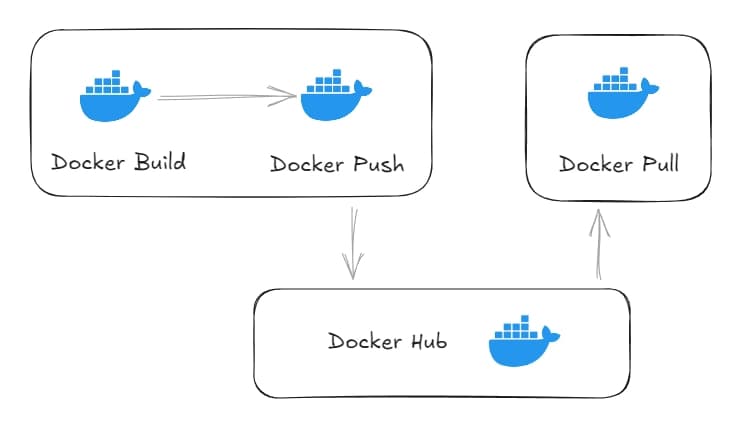
Once built, you need to host your image so your dev team or servers can pull and run it.
Option A: Docker Hub
This is the standard as you use this to put any other images to work with.
- Login to your terminal:
docker loginconfirms you are who and which account is linked to your terminal - Tag your image:
docker tag username/image-name:tag, creates new image with tag as image name. - Push your tagged image:
docker push your-username/my-app:1.0, pushed to your docker hub registery
Option B: GitHub Container Registry (GHCR) If you already use GitHub and GitHub Actions, GHCR is amazing (and more generous with limits than Docker Hub).
-
First, create a Personal Access Token on GitHub:
- GitHub.com -> Settings -> Developer Settings -> Personal Access Tokens -> Token (classic).
- Make sure you check the write:packages permission so you can push images.
-
Login
bash export GHCR_PAT="your-token" echo $GHCR_PAT | docker login ghcr.io -u USERNAME --password-stdin -
Push
bash # similar to docker hub tag but with ghcr.io prefix and your github username docker tag my-app ghcr.io/username/my-app:1.0 docker push ghcr.io/username/my-app:1.0Once done, check your GitHub profile under the "Packages" tab (https://github.com/your-username?tab=packages). Your image will be sitting there, ready to be deployed to any server in the world via docker pull!
Level 4: YAML (Easy Mode)
Now that you know how the CLI works, let's look at the easy way.
Typing out huge commands like docker run -d --name app -e ENV=prod -p 3000:3000 ... requires way too much focus. One typo, and you have to delete the container and start from scratch.
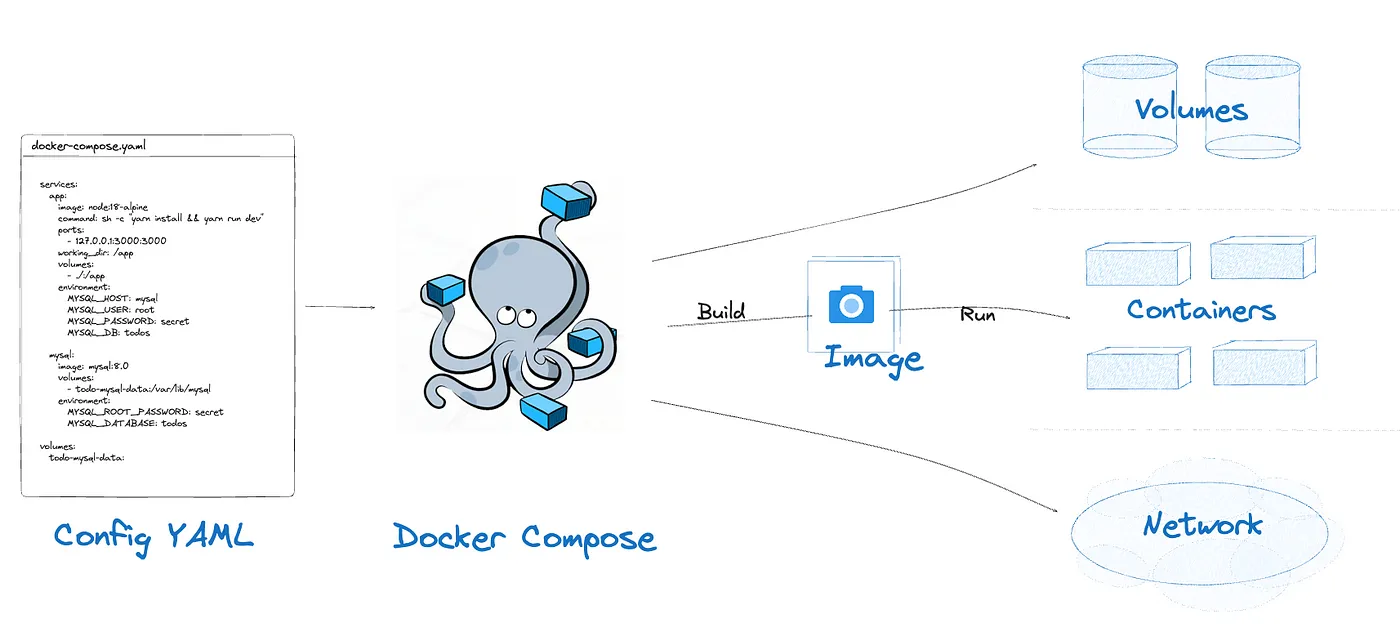
To save time, DevOps relies heavily on YAML (YAML Ain't Markup Language). It is a highly readable text file that defines everything about your containers, networks, and volumes in one place.
Instead of running 3 separate terminal commands to create a network, run a database, and run an app, we write one docker-compose.yml file:
We use YAML and Docker Compose to define everything in one file. One command, docker compose up -d, starts your whole world.
The Standard YAML Setup
services: # This starts the list of "members" in your project (the containers)

  # --- PART 1: THE DATABASE (The Brain) ---
  db:
    image: postgres:latest
    container_name: postgres_db
    restart: always # If the DB crashes, Docker starts it back up automatically
    shm_size: 128mb # "Shared Memory" - Gives Postgres a little extra speed boost

    environment: # These are the "Settings" or "Login Info"
      POSTGRES_USER: postgres
      POSTGRES_PASSWORD: example
      POSTGRES_DB: tododb

    ports:
      - "5432:5432" # [Your Computer Port] : [Internal Container Port]

    volumes:
      - postgres_data:/var/lib/postgresql/data # PERSISTENCE: Saves your DB safely on your hard drive!

    healthcheck: # An "Alarm Clock" that checks if the DB is awake before letting the app start
      test: ["CMD-SHELL", "pg_isready -U postgres -d tododb"]
      interval: 5s
      timeout: 5s
      retries: 5

    networks:
      - flow-network # Puts the DB in a "private chat room"

  # --- PART 2: THE DATABASE UI (Visual Viewer) ---
  adminer:
    image: adminer:latest
    container_name: adminer_ui
    restart: always
    ports:
      - "8080:8080" # Go to http://localhost:8080 to view your DB
    networks:
      - flow-network

  # --- PART 3: YOUR APP (The Website) ---
  app:
    build: . # Tells Docker: "Look at the Dockerfile in THIS folder to build my app"
    image: nischal99/my-todo:latest
    container_name: flow_todos
    restart: always
    ports:
      - "3000:3000"

    environment:
      # NOTICE: We use '@db' (the service name), NOT '@localhost'.
      DATABASE_URL: postgresql://postgres:example@db:5432/tododb?schema=public
      NODE_ENV: production

    depends_on: # ORDER OF OPERATIONS
      db:
        condition: service_healthy # Wait for the DB healthcheck!

    networks:
      - flow-network

# --- PART 4: THE INFRASTRUCTURE ---
networks:
  flow-network:
    driver: bridge # Standard type of network for 99% of apps

volumes:
  postgres_data: # Declares the volume used by the DB above
Now, instead of touching the CLI, you simply run:
docker compose up -d
Docker reads the file, creates the network, provisions the volume, boots the database, waits for it to be healthy, and starts your app. Magic.
Crucial 💡 Pro Tip: If you ever change the DB credentials (like POSTGRES_PASSWORD) or DB name in your YAML file, make sure to delete the volume (docker volume rm...) and recreate it. The old credentials are baked into the existing volume disk. If you don't delete it, you will get maddening authentication errors even if your YAML looks perfect!
Image Commands
| Command | What it does |
|---|---|
docker images | Lists all local images downloaded to your PC. |
docker pull nginx | Downloads an image from Docker Hub without running it. |
docker build -t myapp . | Builds an image from the Dockerfile in your current directory. |
docker rmi myapp | Removes a specific image from your PC. |
docker image prune | Cleans up unused/dangling images taking up space. |
Core Daily Workflow Commands
| Command | What it does |
|---|---|
docker run -p 8080:80 nginx | Runs container, maps host port 8080 to container port 80. |
docker logs myapp | Shows container logs (crucial for debugging!). |
docker exec -it myapp bash | Opens an interactive shell inside an already running container. |
docker run -v $(pwd):/app -p 3000:3000 node:18 | Runs with a bind mount so your code edits update live. |
Level 5: Live Development Mode
Rebuilding the image for every code change is a nightmare. We leverage Bind Mounts to sync our code instantly from our Mac/PC to the container so that we don't need to build image everytime we change something.
Why? In production, we build the image once and it never changes. But in development, you are changing code every 10 seconds. You can't wait 2 minutes for a Docker build every time you fix a typo!
The "node_modules" Problem:
Your Mac/Windows node_modules won't work in a Linux container. If you map your whole folder, your Mac modules will overwrite the Linux ones and the app will crash.
The Solution:
We use a Bind Mount for the code, but we tell Docker to use a separate Anonymous Volume for /app/node_modules. This "hides/anonymous" your local modules and lets Docker use its own Linux-compatible installed node_modules in container.
But for rest of the code use our current code base binded to /app.
  app:
    build: .
    image: my-todo:latest
    container_name: flow_todos
    ports:
      - "3000:3000"
    environment:
      DATABASE_URL: postgresql://postgres:example@db:5432/tododb
      NODE_ENV: development
    volumes:
      - type: bind
        source: .      # Map my local code folder from PC...
        target: /app   # ...to the /app folder in the container
      - type: volume
        target: /app/node_modules # MAGIC: This hides the PC node_modules and uses Docker's own!
    command: pnpm run dev # Run the app with hot-reloading enabled ignores the image pnpm start
    depends_on:
      db:
        condition: service_healthy
    networks:
      - flow-network
Now, every time you hit "Save" on your Mac, the app inside the container updates instantly.
Final Takeaway: Bridging the Gap
Learning Docker was tought but so is not learning and getting behind in this competive world with AI.
If you’re sitting where I was—fearing the "whale"—just start.
Docker isn't just about "running apps"; it's about reproducibility. It's about being able to say, "I built this system, and it will work anywhere."
Here are my four golden rules:
- Linux First: If you don't know the terminal, Docker feels like magic. Learn the survival commands first.
- Volumes are Marriages: No volume = no data. Always bind your databases.
- Networking is Chat: Use shared networks so containers talk via names, not random IPs.
- Dev vs. Prod: Use bind mounts for fast coding, but use clean builds for shipping.
The gap between Junior and Senior isn't about lines of code. It's about knowing how to ship a system that doesn't break. Docker is the ship.
Happy Dockerizing 😊!
Next to Kubernetes...